![Logo_YUKKA_News-Analytics_WEISS_Transparent.png]](https://9431966.hs-sites-eu1.com/hs-fs/hubfs/Logo_YUKKA_News-Analytics_WEISS_Transparent.png?height=40&name=Logo_YUKKA_News-Analytics_WEISS_Transparent.png)
Sometimes you might want to mark a specific news entry, so you won't forget what happened and to make it easily accessible further down the line.
The easiest way to do this is to use the Annotation feature.
In order to create an annotation, open the news entry in question and click on the "Annotation" icon  in the header line.
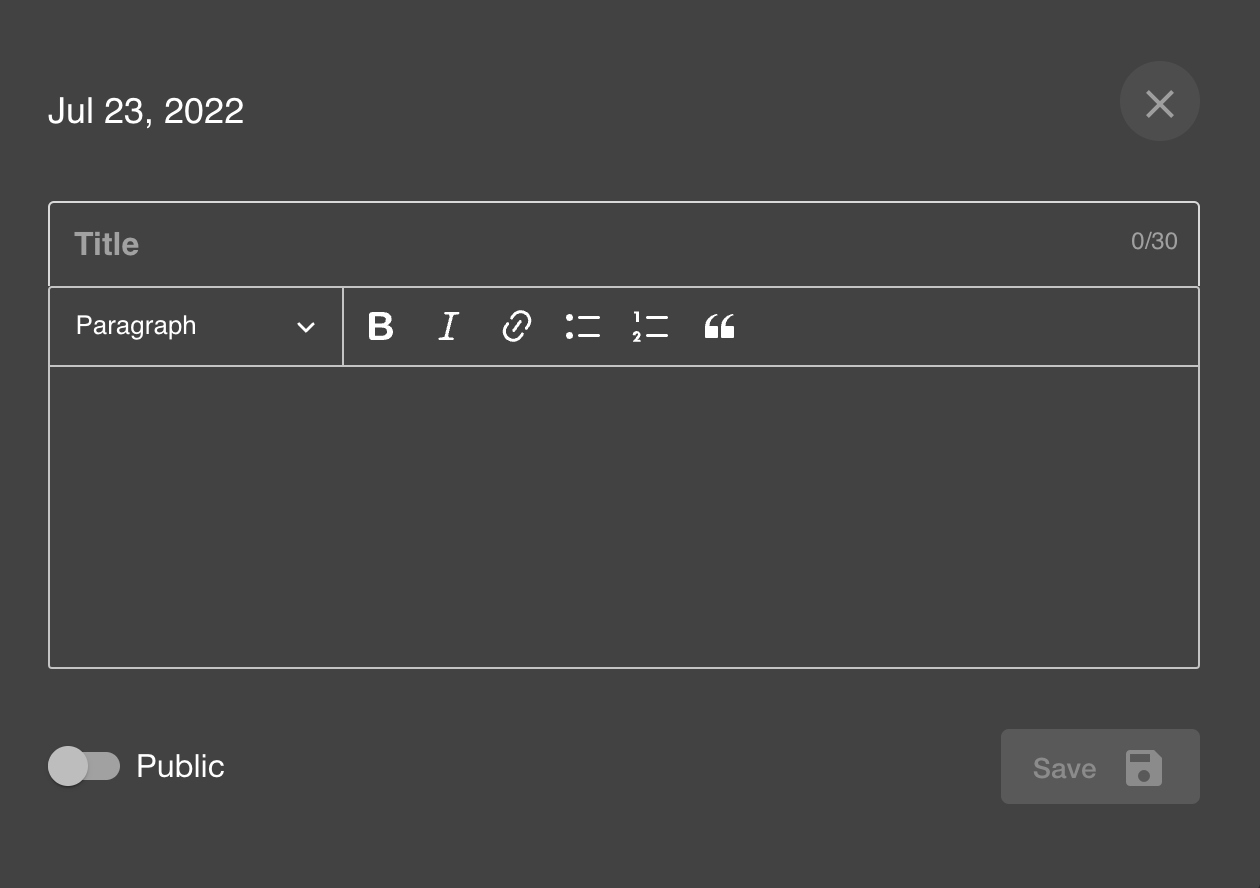
Enter the title you want to use in the provided field.
Then enter the Annotation you want to leave in the text field.
You also have some basic text editing functionality here.
The "Public" switch decides whether the Annotation is only visible to you, or for everyone.
Using "Save" will save the Annotation to your cockpit.
Now, changing to the charts view, you will see this:
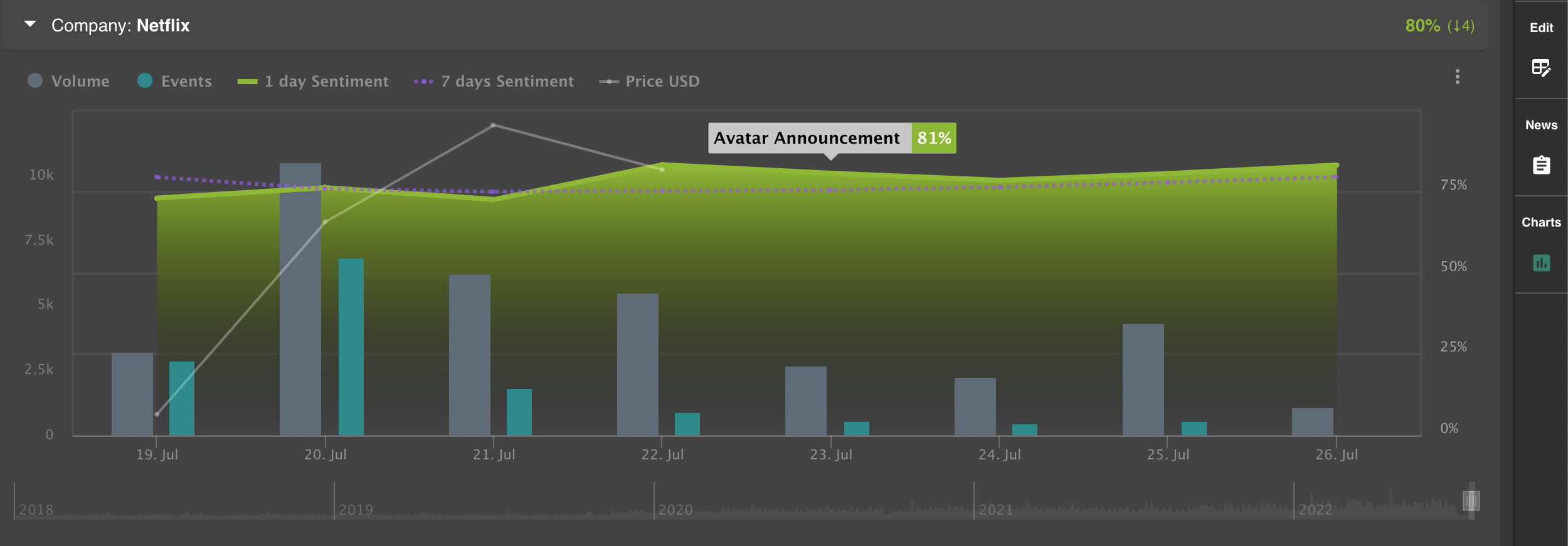
Your Annotation is now available as an entry in the charts, visible for further reference and in direct context to the provided overview.
Should you later want to get back to the entry and check what you have marked, or if any co-worker takes an interest in the Annotation, Zoom in on the Annotation in the Chart view.
You will find the full text of the Annotation on the left side of the screen, above the news:
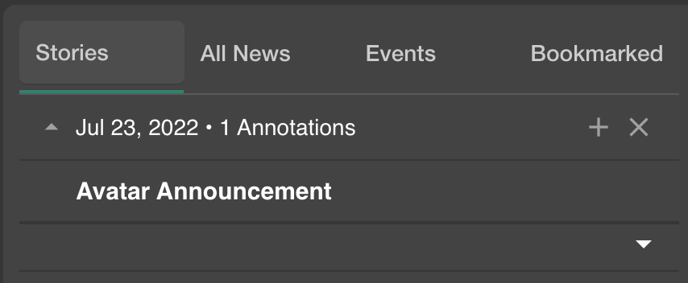
Annotations will always be sorted by date.