![Logo_YUKKA_News-Analytics_WEISS_Transparent.png]](https://9431966.hs-sites-eu1.com/hs-fs/hubfs/Logo_YUKKA_News-Analytics_WEISS_Transparent.png?height=40&name=Logo_YUKKA_News-Analytics_WEISS_Transparent.png)
Our aim was to help you feel comfortable using our Chat feature right away. We wanted to leverage your previous experiences while ensuring that we showcase the best features and insights from YUKKA in a way that is both intuitive and practical.
Main Chat Screen
The Chat interface serves as your gateway to exploring and enhancing your research experience:
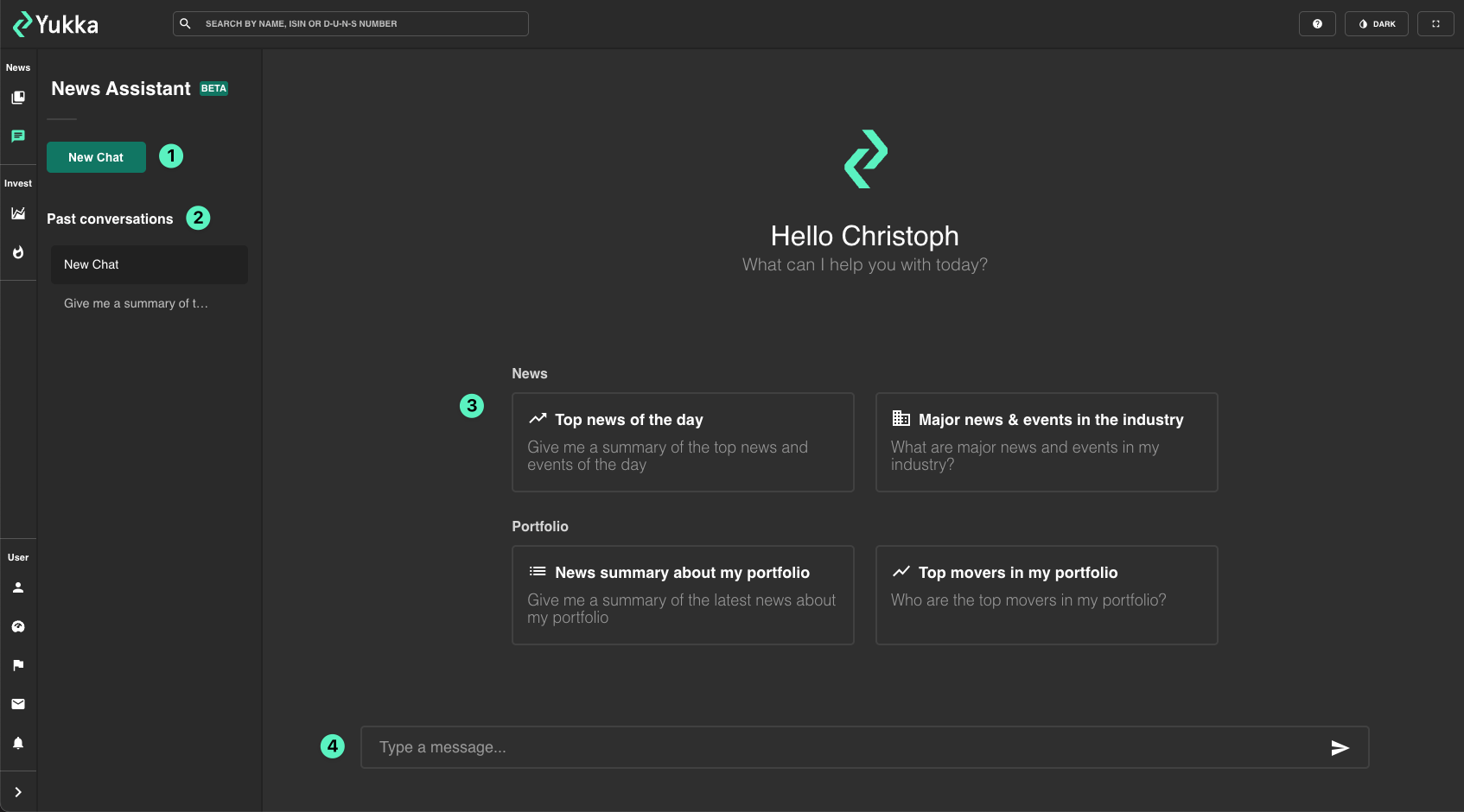
A quick overview of the main elements:
- New Chat: Start from the Sidebar to create a new Thread. Make sure to use this regularly. Keeping your various inquiries helps the AI Chat retain the context of your question and will provide for speedy answers.
- Past Conversations: Each time you initiate a new Chat, it is automatically saved and displayed in this section. To help you easily locate previous discussions, each Chat is named based on your initial Prompt. You can hover your mouse over any entry to rename or delete it as needed.
- Suggested Questions: Discover ideas to jumpstart your experience with our News Assistant Chat. Click on any of the four tiles to delve into insightful news updates or information related to your portfolio companies.
- Input Box: This is where you enter your prompt, whether it’s a question or a specific inquiry. To ensure you get the most out of our extensive data, try to follow best practices for prompting.
Answer Display
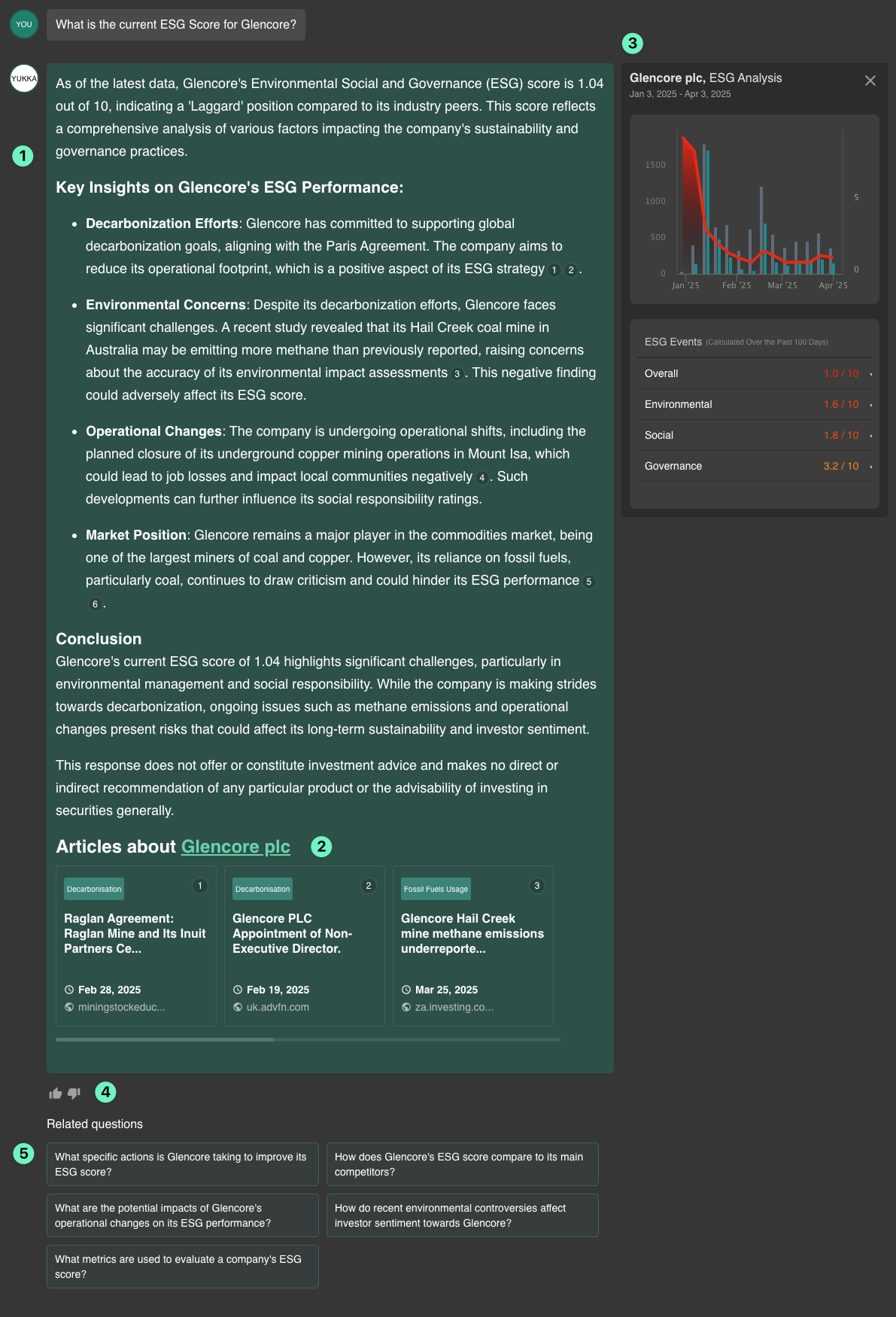
Here's a quick walkthrough across the main features of the answer display:
- Response: This section displays the results of your inquiry sourced from our extensive database. You can find citations linked to specific news outlets, and by clicking on the footnotes, you can view a preview of the corresponding articles.
- Sources: At the conclusion of the response, you'll find a list of the articles that were referenced throughout the Chat response, organized in the same order they appear in the text.
- Insights Panel: Located on the right side of the interface, the Insights Panel showcases relevant Charts and Tables that provide a quick overview of essential metrics. Here, you can easily track Scores, Events, and News Volume Trends for one or more companies simultaneously.
- Answer Rating: The News Assistant is regularly enhanced with new features to improve your experience. You can contribute to this process by using the Thumbs Up and Thumbs Down icons to indicate whether the response you received was relevant and helpful. Your feedback is invaluable in helping us refine the quality of our answers.
- Suggested Prompts: Enhance your research by exploring additional questions. By clicking on any of these prompts, you'll automatically send a related inquiry to our LLM for a response.