![Logo_YUKKA_News-Analytics_WEISS_Transparent.png]](https://9431966.hs-sites-eu1.com/hs-fs/hubfs/Logo_YUKKA_News-Analytics_WEISS_Transparent.png?height=40&name=Logo_YUKKA_News-Analytics_WEISS_Transparent.png)
If you are new to using YukkaLab, there is a lot you can see on the screen in front of you.
Let us use this change to familiarise you with the features of your cockpit.
After setting up a first portfolio, the Cockpit in front of you will look something like this: 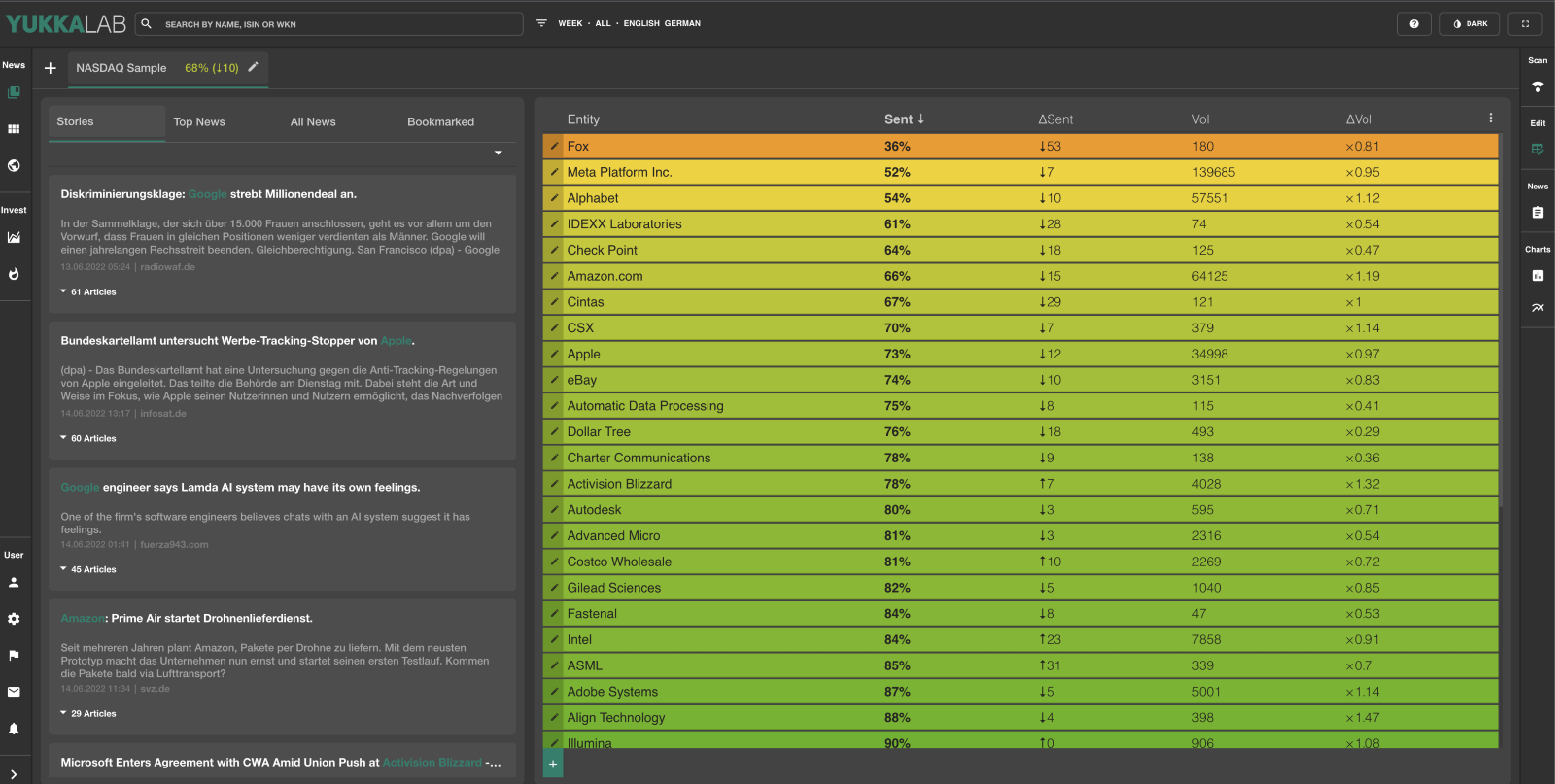
That is a lot of information and options in one place, so let us have a more detailed look at the various parts of this view.
Search Bar:
At the very top of the screen, on the left, you will find the search bar.

Here you can run a quick search for a company or person, by either entering the name, ISIN or WKN of what you are looking for. “Name” does refer here to any search term you are looking for.
Once you click in the search field, a selection will be offered to you:
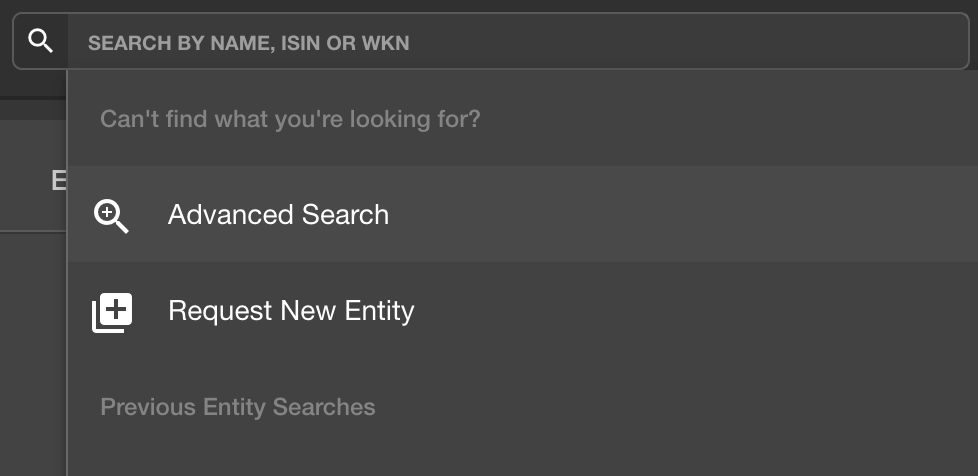
You don’t have to pick any of those. Just enter whatever you are looking for and wait a second for the results to show up.
For a more detailed information on all the functionality of the search bar, look up the chapter on basic searches.
Filters:
Directly to the right side of the search bar, you will find this icon:

These are the “Filter settings.”
A click will open this view: 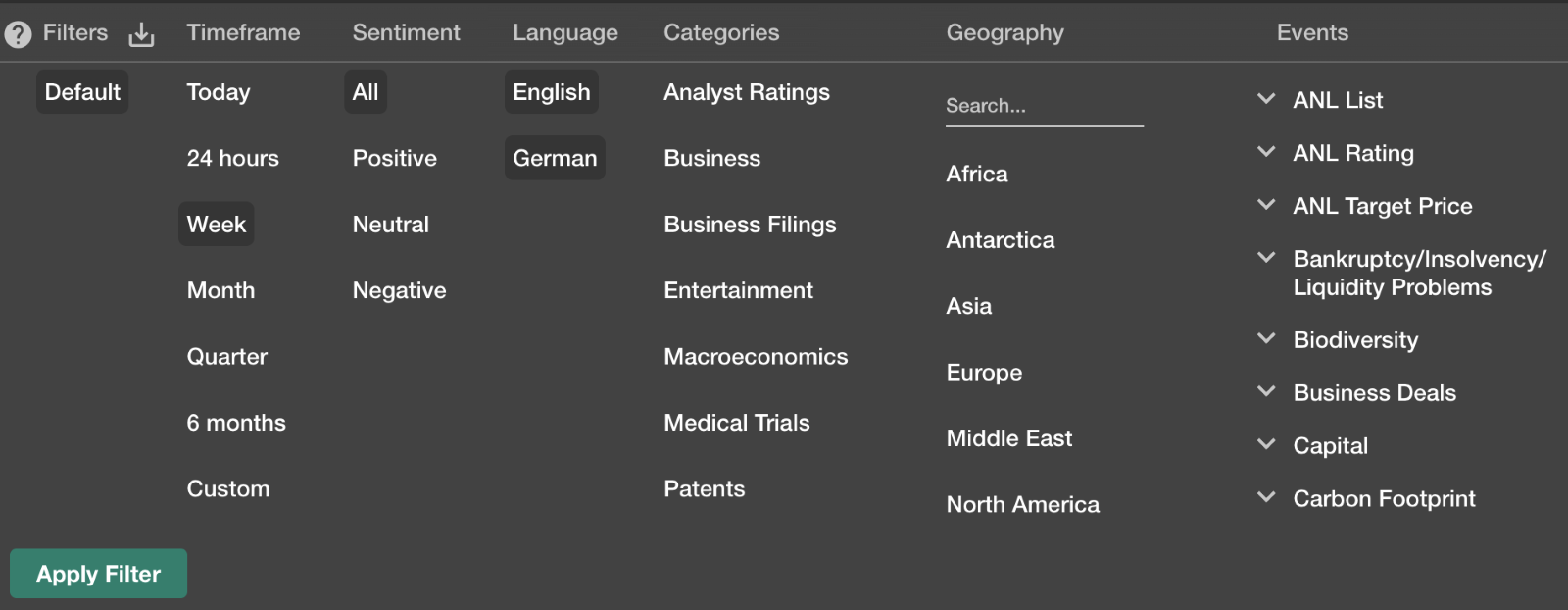
As you can see, there are plenty of different filters that you can apply, to make the news selection presented to you more valuable and to help you find just the information you were looking for.
More detailed information on how the filters work and what each of them does can be found in the article about filters.
Whichever filter you choose, the changes will get active once you click on: 
To the right of the Filter settings, you will find a “quick view” of the activated filters: 
In this case, the filter is set to show “all,” in EN & DE, about “Entertainment” that relates to antarctica.
(I wonder why the search turned up empty...)
Help and Screen Settings:
At the upper right you will find our help feature and the screen settings.

Help: Will open the help window. This is contextual, so the help provided will be in relation to where in YukkaLab you are.
Dark/light toggle: Will switch between a dark and a light colour scheme for your cockpit.

Fullscreen: Sets your Cockpit to Fullscreen mode.
Portfolio Overview:
Located below the search, you will find your portfolio overview.

The “+” allows you to quickly set up a new portfolio.
To the right side you will see the titles of all your portfolios, each shown with a general “score6,” an indicator of trend (the arrow) and the “pen icon” to indicate the option to make changes to the portfolio.
For more details on the portfolios and how they are set up, please refer to the “portfolio” chapter.
News Bar:
On the very left side, upper half of the screen, you will find the “news” section of your cockpit:

 Portfolio view
 Collection view 9
 Market view 10
These allow you to quickly navigate through the different news “views” available in your Cockpit.
A green colour indicates the view you are currently using.
For more information on each of them, please follow the links provided to the right of the icon.
Invest Bar:
Below the News, still on the very left of the screen, you will find the “Invest Bar”

 Signals view11
 Trending view12
These allow you to quickly navigate through the different news “views” available in your Cockpit.
A green colour indicates the view you are currently using.
For more information on each of them, please follow the links provided to the right of the icon.
User Bar:
It is located at the lower left side of your cockpit. Here you will find all options regarding the user and the settings for your cockpit.

 User13: Here you can change your password and log out of the account.
 Settings14: This will open the settings screen where you can enable or disable the different scores that are available for your account
 Flags15: Open the settings for ”Flags.” Flags can be set to mark entities if specific, set circumstances occur.
 Newsletter16: Will open the Newsletter settings. The newsletter will enable you to create a newsletter that you can distribute to share your findings in YukkaLab.
 Alerts17: An alert will inform you in real time if a certain event / set of circumstances occurs. Alerts will be provided to you via e-mail.