![Logo_YUKKA_News-Analytics_WEISS_Transparent.png]](https://9431966.hs-sites-eu1.com/hs-fs/hubfs/Logo_YUKKA_News-Analytics_WEISS_Transparent.png?height=40&name=Logo_YUKKA_News-Analytics_WEISS_Transparent.png)
You have been working a while in YukkaLab and you want to have a "broad overview" of all the information you collect in your different portfolios?
Aggregated Portfolios are what you are looking for.
In order to create an aggregated portfolio:
Click on the plus in the upper left corner of your cockpit, while being in portfolio view:
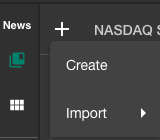
Select "Create" from the dropdown menu.
You will now be presented with this choice window in the middle of the screen:
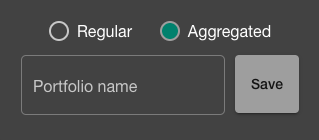
Select "Aggregated" and enter a name for the portfolio.
Now you have your Aggregated Portfolio created. You will see this icon next to the portfolio in the overview:

The icon visibly indicated that it is an Aggregated Portfolio for better overview.
You will notice that currently there are no entries in your portfolio. Let us change that.
In the lower left corner of the center view you will find this:
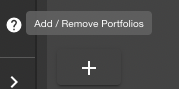
Click on the "+" and this selector will appear in the middle of the screen:
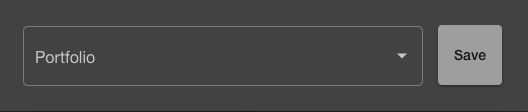
Click on the dropdown arrow and select those portfolios that you want to add:
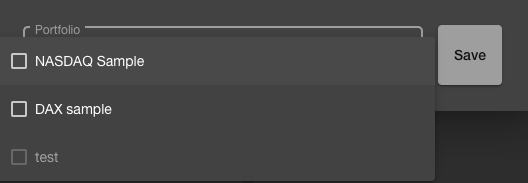
Make your selection and press "Save".
You can edit the added portfolios at any time by clicking the "+" in the lower left and update your selection of portfolios there.