![Logo_YUKKA_News-Analytics_WEISS_Transparent.png]](https://9431966.hs-sites-eu1.com/hs-fs/hubfs/Logo_YUKKA_News-Analytics_WEISS_Transparent.png?height=40&name=Logo_YUKKA_News-Analytics_WEISS_Transparent.png)
How is a Collection different from a portfolio?
As a portfolio, a collection will provide you with the news related information that you require.
As a portfolio it will do so in a nicely structured way.
But different from a portfolio, you are not limited to entities that are available in our Ontology, but you can obtain information about anything you can think of if it is available in the news somewhere.
You do so by setting up queries around your topic of interest.
To set up a Collection there are two different options. You can either create a Collection from scratch or import a pre-existing one.
- To create a new Collection, you proceed like this:
-
- First click the “Collection” Icon
 in the upper left corner of your cockpit.
 - In the middle of the screen, click “Create collection”

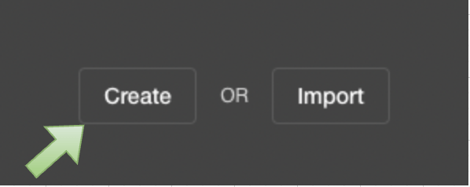
- Select "Create" in the middle of the screen
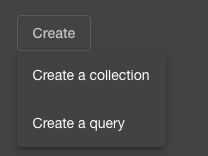
- Now select “create a collection”
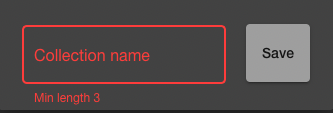
- You will then be asked to provide a name for the Collection you want to set up:
- The look of the cockpit page will change now:
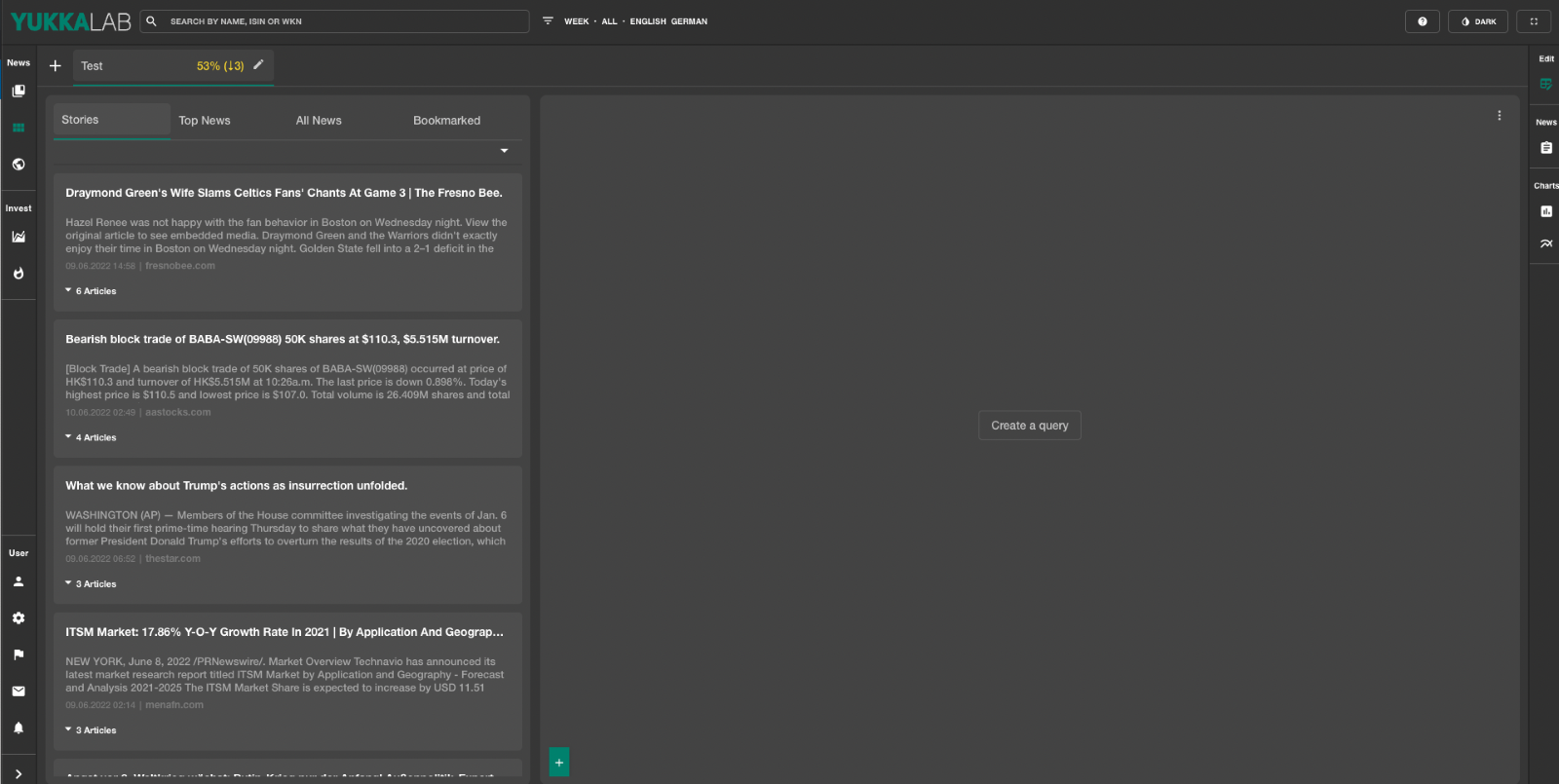
As you can see there are already news results shown, but these are yet unfiltered and of no further relevance, as there is no query yet in your collection.
- To get “relevant” results you will need to create a query
-
- This opens the query window.
First, select a name for the query.
Then define the collection to which the query shall be added. (There is a dropdown arrow to the right of the line, that allows you to make a selection.)
Then you enter the search term in this line:
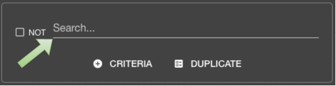
- Creating a search for “Dungeons & Dragons” for example will result in something like this:
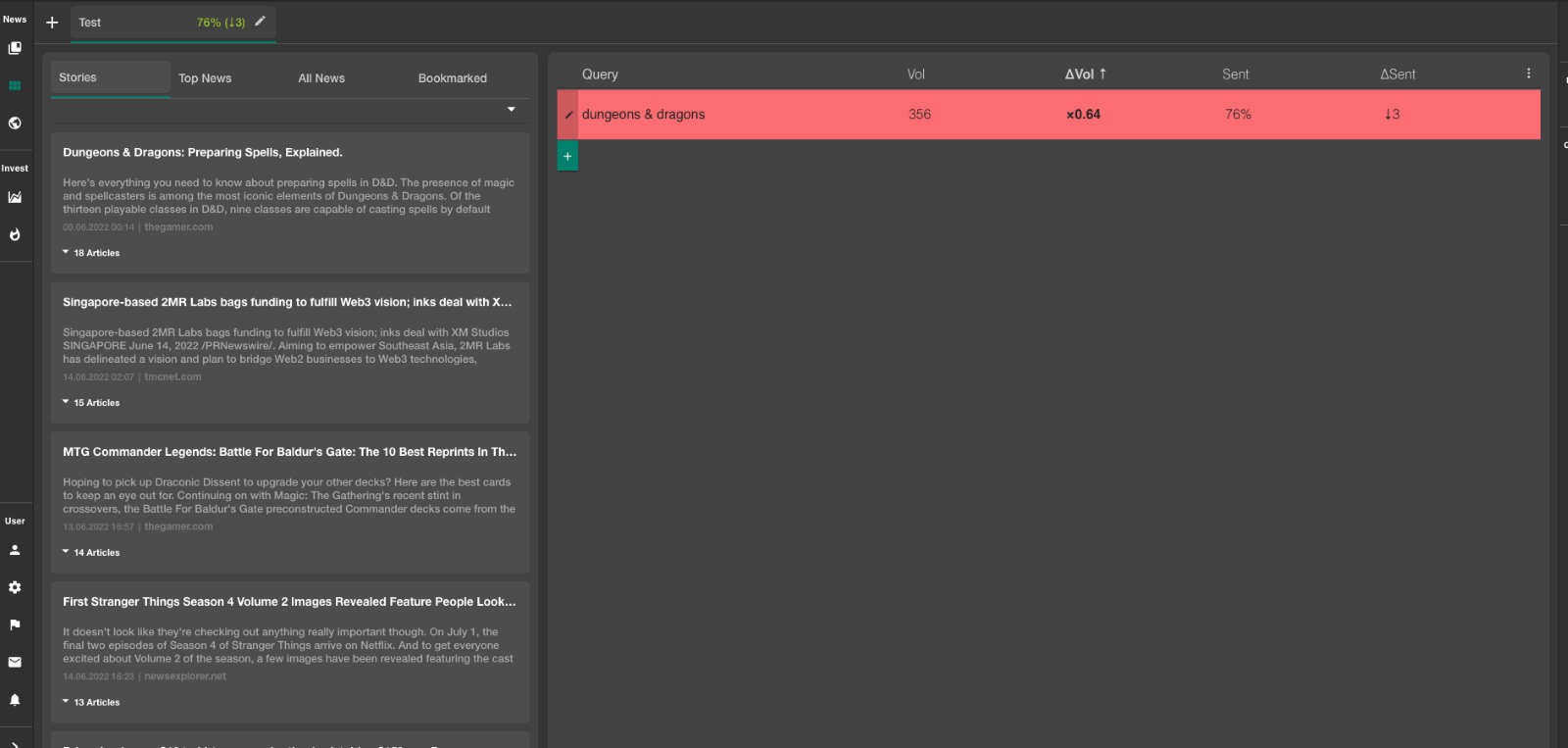
To the left you see a summary of the top results, while on the right you see an outline of the query results. - Done. Your first query is set up.
- First click the “Collection” Icon
- Importing a collection from a file:
- To import a collection click here:
- This will bring up a selection:
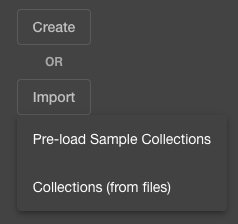
- “Pre-load Sample Collections” will bring up a Collection that we have stored in the account to allow you to quickly test the feature.
- “Collections (from files) will allow you to import a collection that you might have received by a colleague. (This choice will open your systems file browser to allow you to select the file. After uploading it the collection will be available to you. )
- To import a collection click here: