![Logo_YUKKA_News-Analytics_WEISS_Transparent.png]](https://9431966.hs-sites-eu1.com/hs-fs/hubfs/Logo_YUKKA_News-Analytics_WEISS_Transparent.png?height=40&name=Logo_YUKKA_News-Analytics_WEISS_Transparent.png)
YukkaLabs does provide you with a lot of information. So much so, that you will sometimes want to get a clear indication when certain things of interest (i.e. events) happen in order to make your life a bit easier.
Flags serve exactly this purpose.
They provide you with a clear visible reminder of crucial events that have happened in the past and that might require special attention.
So, how do you set up a Flag:
You star by clicking on the "Flag icon" in the lower right side of the screen.

This will open the Flag setup menu:
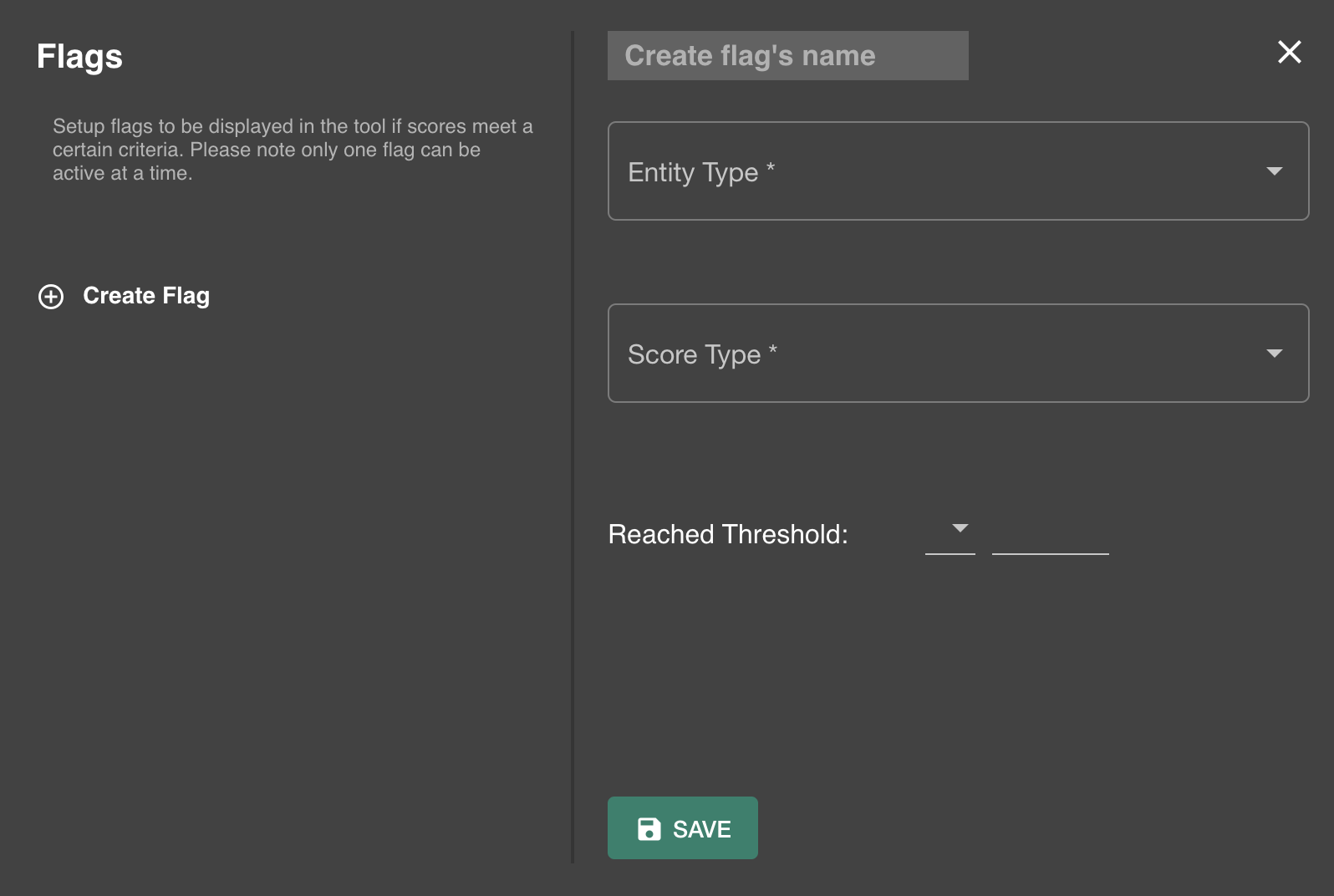
First step in the Flag setup is tho give the Flag an easily recognisable name.
Once this is done, you will select the entity type that the flag is set up for: 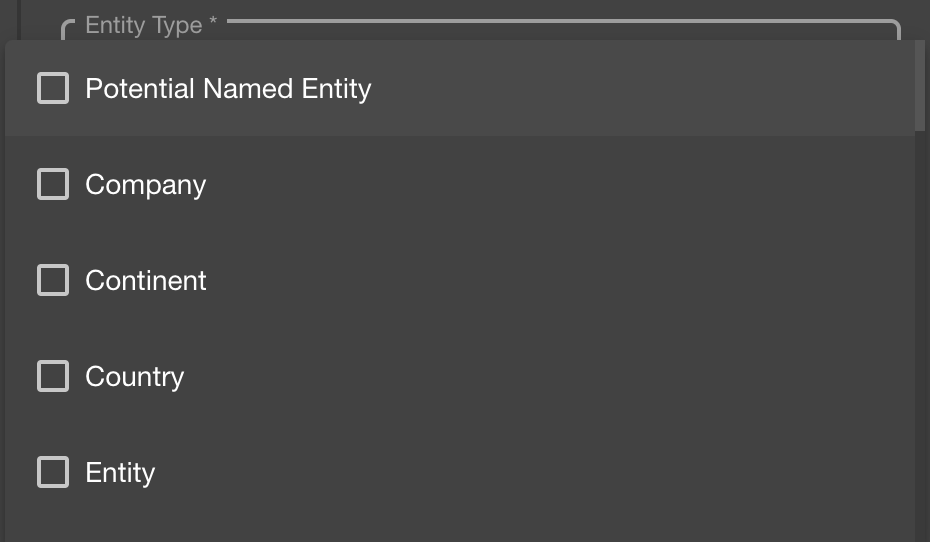
Multiple choices are possible. Just tick the checkboxes as required for your request.
For more information on the options here, please refer to the respective Glossary entries in the Help Centre.
In the next setting you will define the "Score type" that will be assessed for the Flag.
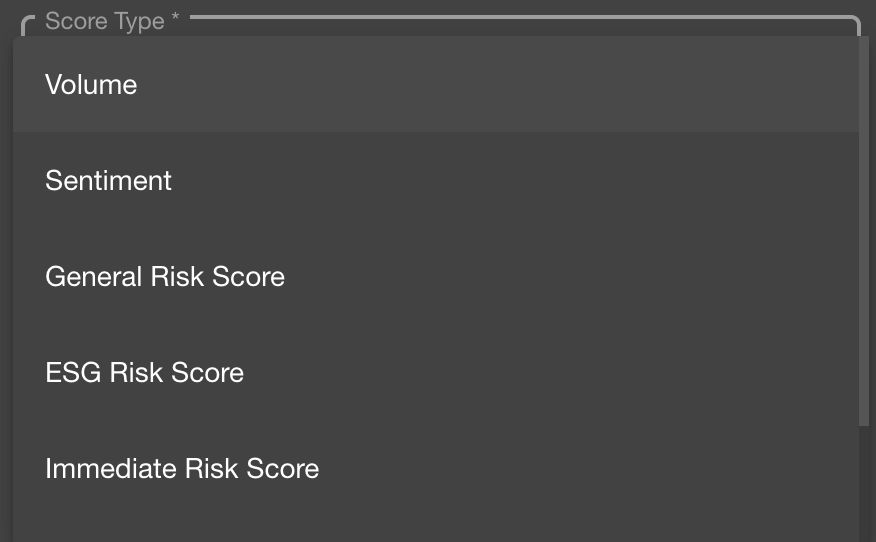
You can make only one choice here. Flags will always only trigger on one score and these can not be "mixed".
Please Note: What scores are available to you is dependent on your account settings. Should you require a score that you see here, that is not available in your account, please get in touch with us via inquiries@yukkalab.com.
The last step in setting up the score is to define the threshold on which the Flag will be triggered.
The Parameters for the thresholds are different depending on what score you have picked:
- Volume : Can be any positive Integer. The Volume Flag will be triggered as soon as the total amount of news for the entity type selected is equal or greater than your threshold.
- Sentiment: Can be any value between 1 and 100. Since 100 sentiment is good and 1 is bad, you will normally be setting a Flag like: "Sentiment" ≤ "x" , where x is what you define as critical.
- General Risk: Can be any value between 1 and 10. By default we consider a general risk of 5.6 to be worth investigating, so a common setting would be: GR ≥ 5,6
- ESG Risk: Can be any value between 1 and 10 with 10 being very high risk and 1 being very low risk. 5,6 is considered to be "risky", so a common setting would be ESGR ≥ 5,6
- Immediate Risk: Can be any value from 1 to 10 with 1,1 considered to be "risky". A common setting would be: IR ≥ 1,1
- ESG Score: Can be any value from 1 to 10, with 10 being very good and 1 being very bad. A common setting therefore would be: ESGS ≤ 5,6
Last step is to save the Flag.
You will now see your Flag in the left side of the window:
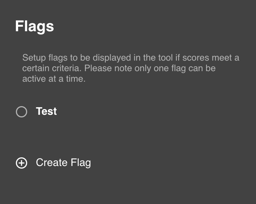
To activate the Flag, tick the checkbox. You are done.
Should you require to create additional Flags, you can always do so by entering the Flag setup and clicking on "Create Flag".
Once active your chosen Flag will be visible in your portfolio:
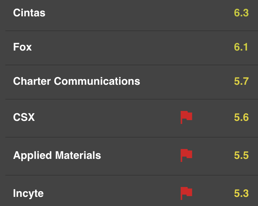
There are 2 types of Flags:
Red : Indicated that the Flag was triggered "recently" , which is defined as a period of 90 days.
Orange: Indicates that there was no "recent" trigger, but that the Flag was triggered within 365 days.
Note: There is no green flag. Absence is equal to that and indicates, that the Flag was not triggered at all in 365 days.