![Logo_YUKKA_News-Analytics_WEISS_Transparent.png]](https://9431966.hs-sites-eu1.com/hs-fs/hubfs/Logo_YUKKA_News-Analytics_WEISS_Transparent.png?height=40&name=Logo_YUKKA_News-Analytics_WEISS_Transparent.png)
Sometimes news need to be spread and you might want to share your findings in the news with your co-workers.
If this is only about a single article, flagging this one for attention is enough, but if you want to distribute a larger amount of news, then a newsletter might be the right solution.
Setting up a newsletter is easy and allows you to spread an overview of the news you have found.
To begin, click the newsletter icon  , located in the lower left sidebar of your cockpit.
This view will open:
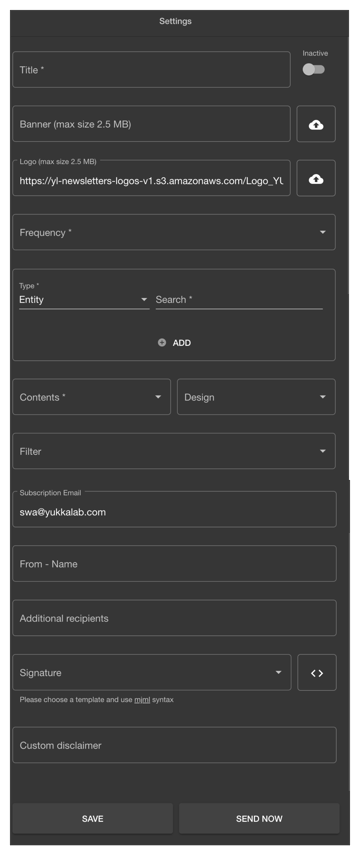
Quite a lot of options here, but not all are needed to set up a newsletter.
At first, please enter the title that the newsletter is supposed to have:

The switch at the right side defines whether the newsletter will automatically be shipped or not. An "inactive" newsletter, as the switch above indicates, will not be send out.
The next to options, Banner & Logo, are not required to send out the newsletter, but are a means to customise it to your organisations needs.
Banner & Logo both, will be shown at the top of the newsletter.
"Frequency" is a mandatory information.
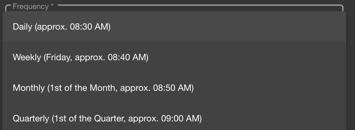
Here you define, as a selection from the dropdown list, how often the newsletter shall be created and shipped.
On an active newsletter (the switch beside the title), the selection you make here will define, when exactly the newsletter will be delivered.
Now that the most basic settings are done, let us define what news should be part of the newsletter.
First you define the "Type" of news that shall be included, as selection from a dropdown menu:
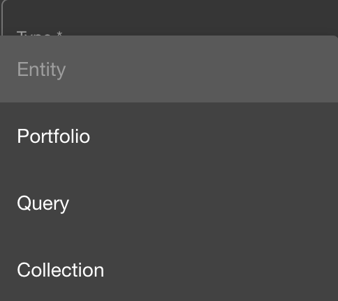
Select whether you want to include a specific Entity, a Portfolio you created, a Query, or a Collection.
Depending on your selection, you have different further options:
- Entity: You will have to select the search that you want to use. As with any other search for an Entity, you make your entry and the system will provide you with a list of Entities to select from:
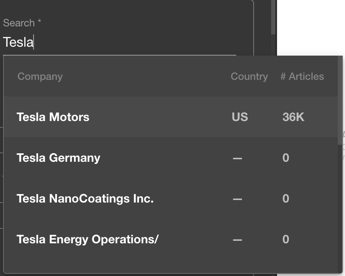
Make your pick from the list. Done.
- Portfolio: Make your selection from the Portfolios that are available in your Cockpit

- Query: Use any of the Queries that are saved on your account to be included in the Newsletter
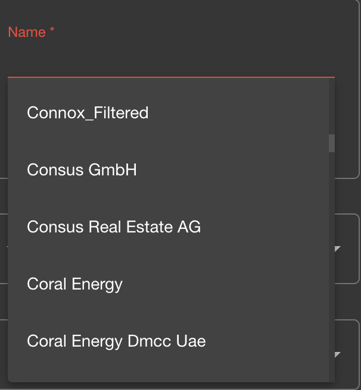
- Collection: Choose from any Collection you have available in your Cockpit
That said, you certainly have mentioned the  icon directly below? This allows you to add additional news to your Newsletter, providing you with all the tools to customise it to your liking:
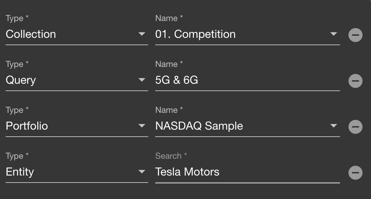
All the selections you make here will later be represented in the Newsletter.
Next you will define the content to be shown
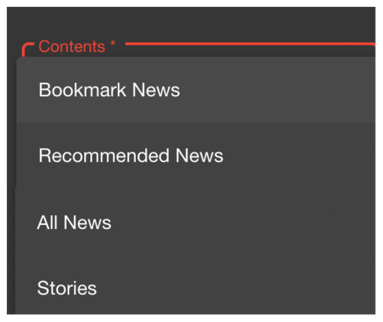
- Bookmark News: This will contain all news you have actively bookmarked in the timeframe the newsletter is covering. This gives you an option to very precisely define the information shown in the Newsletter.
- Recommended News: Will show a selection of news based on a search phrase you define. More information about how this works can be found in the Recommended News entry of the Help Centre.
- All News: Will show all news that are found based on your selection made in "Type".
- Stories: Will show all news compiled into Stories, so that news revolving around the same topic are grouped together.
You can now define who is to receive the Newsletter by adding the E-mail addresses to the field "Additional recipients"

Simply enter the E-Mail addresses, one at a time, and confirm them by pressing "enter".
Please note: You can currently only enter one E-mail address at a time. Cut-Copy-Pasting a number of entries at the same time or importing them from a file is not possible at this stage. We are working on it!
At this stage you are basically done setting up your Newsletter.
You can now "save" your entries by clicking the button below and send a test newsletter using "send now".

Tip: You might want to test the Newsletter prior to entering the additional recipients. That way you will make sure that only you receive the test and can make changes prior to spreading the news, if you think that is required.