![Logo_YUKKA_News-Analytics_WEISS_Transparent.png]](https://9431966.hs-sites-eu1.com/hs-fs/hubfs/Logo_YUKKA_News-Analytics_WEISS_Transparent.png?height=40&name=Logo_YUKKA_News-Analytics_WEISS_Transparent.png)
Your Portfolio is the centrepiece of your YukkaLab account.
The “go-to-place” to look up your news and having an eye on the news that you want to monitor.
There are several ways to set up your portfolio:
- Create an all-new portfolio
- The first decision you will make is whether you create a "regular" or an "aggregated" portfolio.
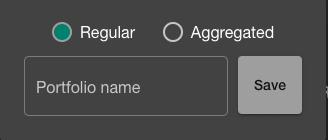
- Creating a "Regular" Portfolio will follow these steps:
If so, far you have no portfolio in your account, the starting page you will see after logging in will look like this: 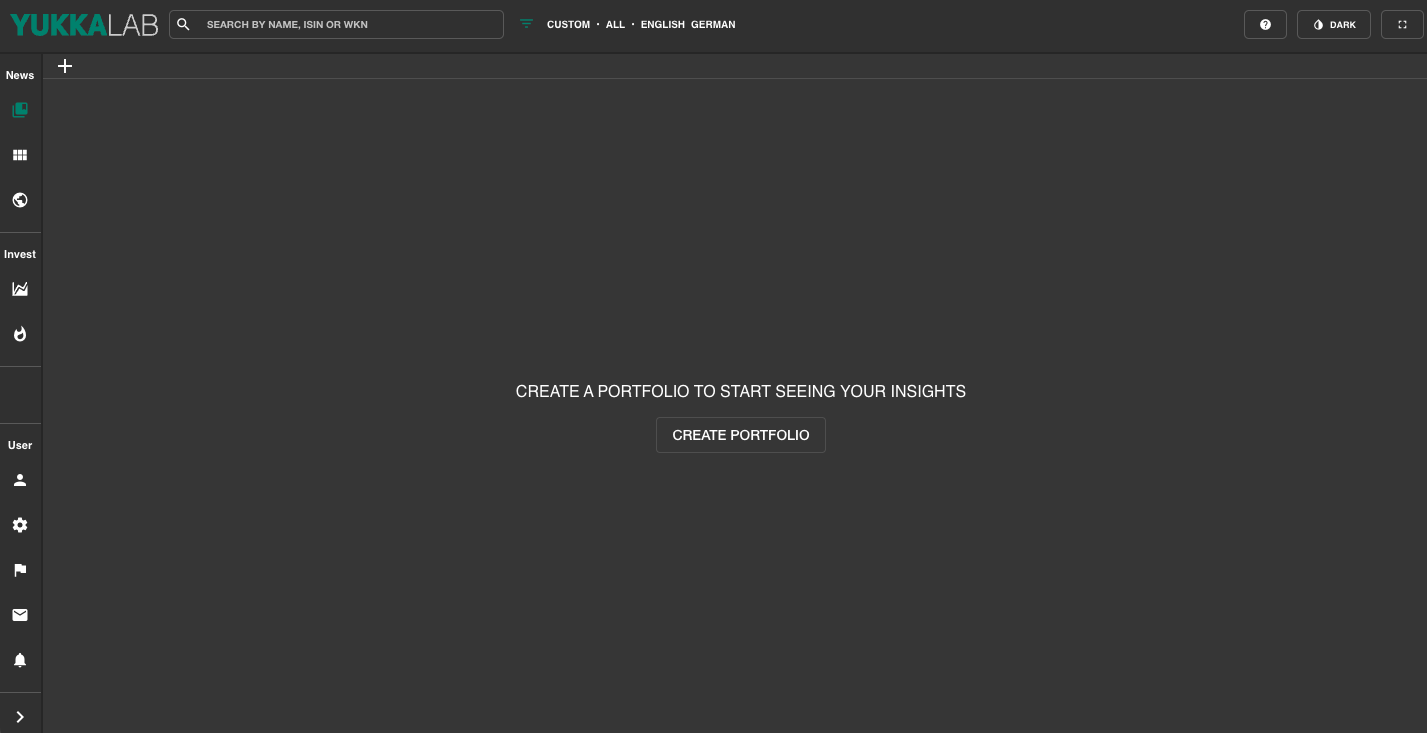
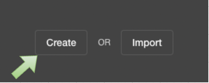
Choose to “Create”.
The next step is to give your portfolio a name. Pick one that will make it easy for you to differentiate between your portfolios in the future.
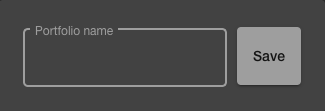
After pressing “Save” the newly created portfolio will be visible in the upper left of your screen.
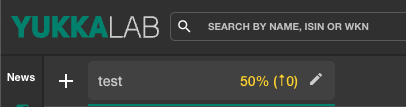
In the middle of the right-side window, you will now see “Add Company”
Clicking “Add Company” will add a new window which will allow you to search the first entry for your portfolio
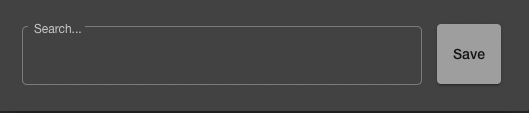
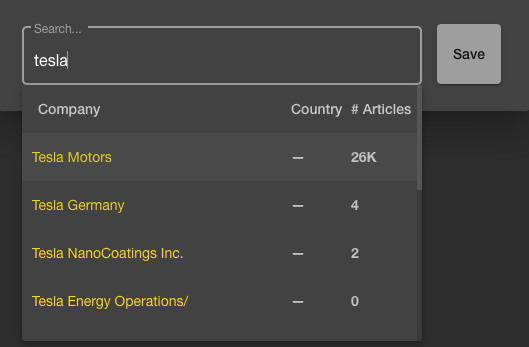
Entering a company name here, will result in a list of company names showing up. Pick one of the entries on the list and click “Save” to add the company to your portfolio:
Finishing this, you have created the first entry for your portfolio. The view of the screen will now change significantly and look something like this: 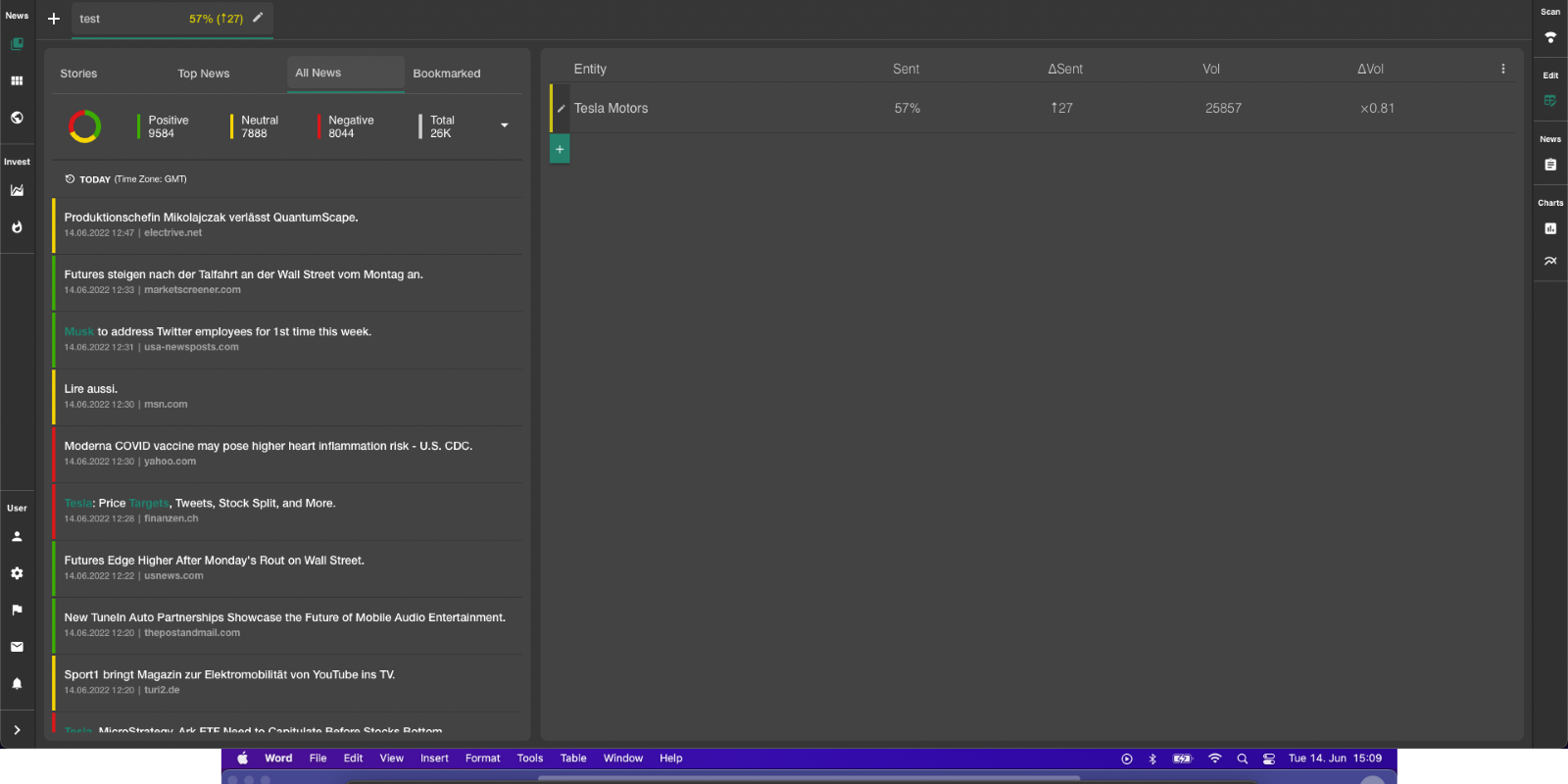
On the left side you will see the news associated with your search.
On the right side you see an overview of the entries to your portfolio.
To add additional portfolio entries, click on the  below the list of already existing entries and proceed from there.
(Please keep in mind: The availability of an entity for portfolios is limited. Portfolios are based on existing entities. Should you miss an entity, please contact us. In order to find )
2. Import an existing portfolio.
You can not only create new portfolios, import already existing portfolios provided to you.
Starting from an “empty” account you will first see this screen: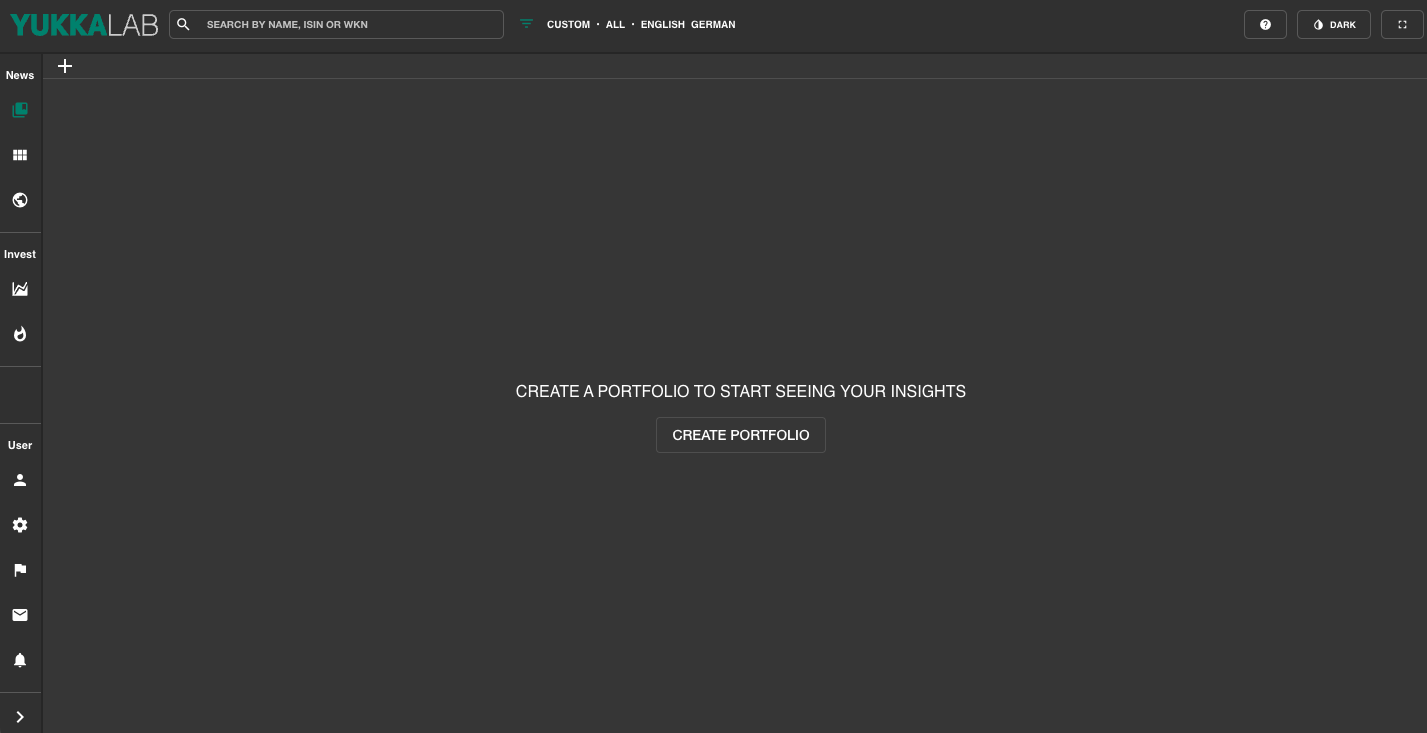
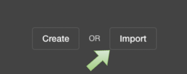
Select the option “Import” in the middle of the right-hand window
Choosing this option will open a drop-down menu
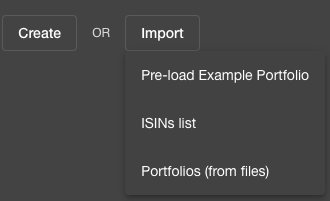
- Choosing “Pre-load Example Portfolio” will create the default “NASDAQ example” portfolio, that enables you to test the software.
- ISIN’s list enables you to upload a list of ISIN, for which the companies will then be imported in the portfolio.
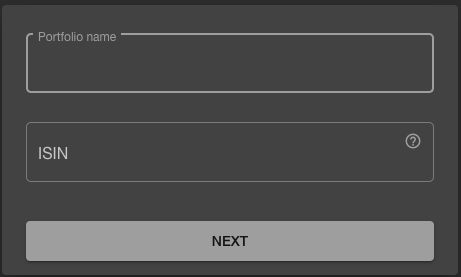
In Portfolio name, please enter the name you want for the portfolio.
In the ISIN field, please enter the ISIN you want to enter. You can also import a complete list of ISINs. To do so, just paste the numbers divided by a colon or a blank space. The companies will then be populated to the portfolio.
(Please note: There is currently no way to enter company ID numbers other than the ISIN.)
Should you have received a portfolio-file, please choose “Portfolios (from files).
This will open your file browser.
Select the file in question and upload it.
Each of these choices will result in you having imported your portfolio for further use.
For details on how to create an "Aggregated Portfolio" please check out the article.