![Logo_YUKKA_News-Analytics_WEISS_Transparent.png]](https://9431966.hs-sites-eu1.com/hs-fs/hubfs/Logo_YUKKA_News-Analytics_WEISS_Transparent.png?height=40&name=Logo_YUKKA_News-Analytics_WEISS_Transparent.png)
When logging into your cockpit, you will start on the portfolio overview page.
From time to time it might be required to do some changes on your portfolio. You will see, that the overview does not give you an option to actually edit much.
You can add portfolio entries using the  in the bottom left corner of the overview and rename and delete items from the list, by selecting them and using edit their name or delete them.

Lastly, the edit view will provide you with an option to change the scores shown in the overview by using  in the upper right corner of the overview.
For larger changes to the portolio, you might want to change to the Edit view  .
.
The icon is located in the upper right sidebar of the cockpit.
Once you click there, the page will reload and change to a different view:
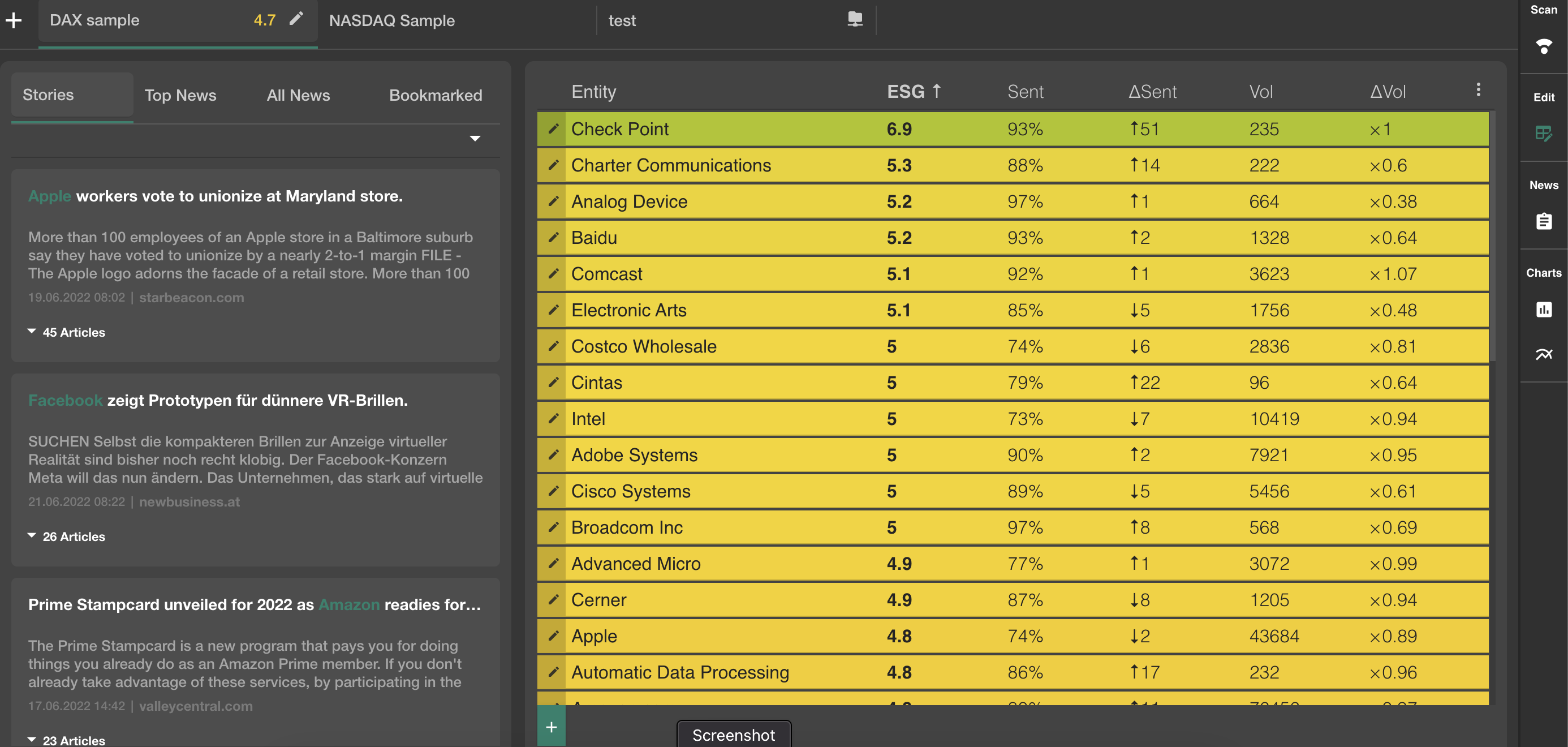
As you can see, the most visible difference is, that the analytics part on the right hand side has vanished. Instead it has been replaced by a news overview on the left. This gives you more space in which the screen the news for what you are looking for.
Furthermore, the "Edit"  is now permanently visible on each entry in the portfolio, making changes just a little bit easier.
But most importantly, the in the upper right corner have now changed to a new set of functionality:
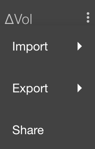
Here you have several tools to work with the portfolio:

Gives you the following options:
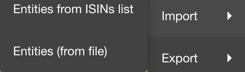
Entities from ISIN list will allow you to import entities based on their ISIN.
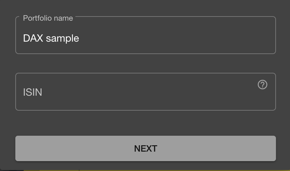
Paste your list of ISIN here. They can be copied directly from a spreadsheet column or you can paste them manually, separated by a space or a break.
They will then be populated to your portfolio.
In other cases it might happen, that portfolio information is provided to you as a file.
In that case choose import Entities (from file) and then select the json file from your file manager.
Furthermore you can Export your data to different formats:
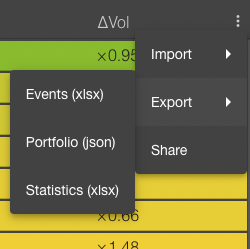
"Events" will create a list of the events that are participating in the news for this portfolio.
"Portfolio" will export the Portfolio itself, for security or import in another place.
"Statistics" will export a spreadsheet with the statistical information that you see in front of you, when you are looking in your portfolio overview.
Lastly, you have the option to share the portfolio.
For more information on how this works, please have a look here.